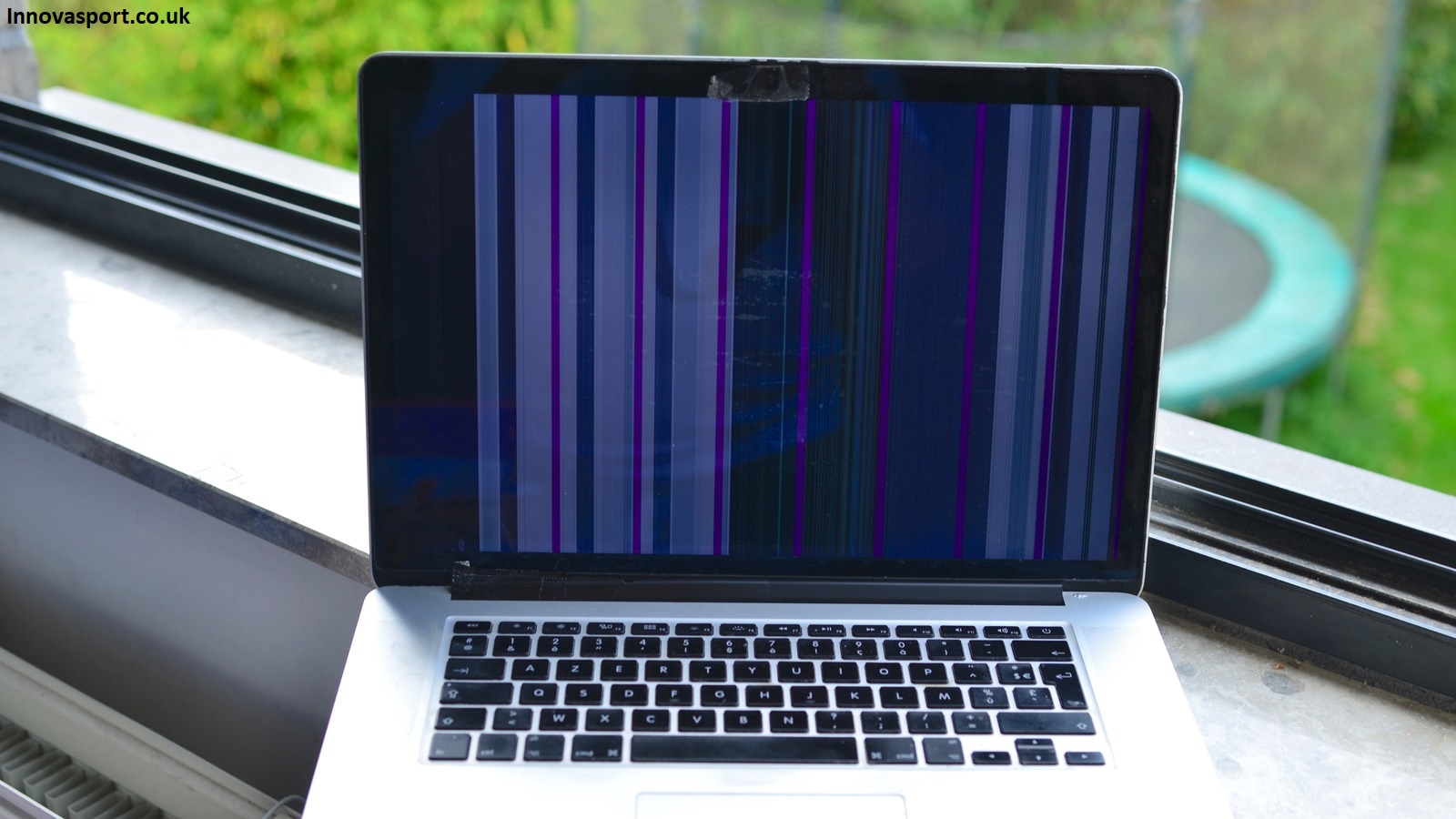
Why Is My MacBook Screen Flickering? A flickering MacBook screen is one of the most frustrating issues a user can experience, and it can stem from several different causes.
The most common reason is a software glitch, where a recent macOS update or a misbehaving app disrupts the display settings and causes instability.
Outdated or corrupted graphics drivers can also trigger flickering, especially after system updates.
Hardware issues such as a loose display cable, damaged GPU, or failing backlight are more serious causes that typically require professional repair.
Overheating can also force the GPU to throttle, causing screen instability. Identifying whether the issue is software or hardware related is the essential first step toward fixing it.
Table of Contents
Quick Table
| Cause | Signs | Fix |
|---|---|---|
| Software Glitch | Flickering after macOS update | Restart, update macOS, reset NVRAM |
| Outdated Graphics Driver | Flickering with specific apps | Update macOS and app software |
| Loose Display Cable | Flickering when screen moves | Professional repair needed |
| Failing Backlight | Dim or uneven flickering | Apple Store or repair shop |
| Overheating GPU | Flickers under heavy load | Clean vents, reduce workload |
| Corrupt Display Settings | Flickering on specific resolution | Reset display preferences |
| Third Party App Conflict | Flickers when app is open | Delete or update the app |
| Damaged GPU | Constant flickering, color distortion | Professional hardware repair |
| Low Battery / Power Issue | Flickers on battery mode | Check battery health, reset SMC |
| macOS Bug | Widespread flickering reports online | Wait for Apple patch or rollback |
Why Is My MacBook Screen Flickering?
It happened to me at the worst possible time — right in the middle of a video call, my MacBook Pro screen started doing this weird strobing thing, like a dying fluorescent light. Embarrassing?
Yes. Fixable? Also yes — once you know where to look.
Screen flickering is one of those problems that ranges from “totally harmless, fixed in 2 minutes” to “you need a new display panel.
” The trick is figuring out which camp you’re in before you panic-book a Genius Bar appointment or — worse — live with it for months like I did the first time.
Let me walk you through what I’ve learned from dealing with this on two different MacBooks, plus what I’ve picked up from hours of digging through Apple support threads and tech forums so you don’t have to.

First — what kind of flickering is it?
Not all flickering is the same, and the type matters a lot for diagnosis. Before trying anything, just observe it for a minute.
Identify your flicker type
Full-screen strobing — the whole screen pulses or flashes repeatedly. Usually software or GPU-related.
Horizontal or vertical lines — lines appear across the screen. More likely a hardware issue (display cable or panel)
Flickering when moving the lid — screen flickers only when you adjust the angle. Almost always a loose or worn display cable.
Flicker only on battery or only plugged in — power management or GPU switching issue. Very fixable.
Flicker in specific apps only — GPU driver or app rendering bug. Usually a software fix.
Software causes (start here — these are free to fix)
Honestly, the majority of screen flickering on modern MacBooks has a software root. This was true both times I dealt with it. Before you assume the worst, work through these.
GPU switching going haywire
If you have a MacBook Pro with both an integrated and a dedicated GPU, macOS automatically switches between them to save battery.
Sometimes this switching gets confused — especially after macOS updates — and causes flickering during the transition.
How to check / fix
Go to System Settings → Battery.
Toggle “Automatic graphics switching” off temporarily and see if the flickering stops.
If it does, the switching logic is the culprit. You can leave it off or update macOS — newer versions often patch this.
This fix worked for me on my 2019 MacBook Pro after upgrading to Ventura. The flickering disappeared within seconds of disabling it.
True Tone or Night Shift acting up
These display features adjust color temperature dynamically. On some machines — especially after system updates — they can cause visible flickering, particularly in low-light environments.
Go to System Settings → Displays and toggle off True Tone. Then do the same for Night Shift (in the Night Shift tab). Test for 10–15
NVRAM / PRAM needs a reset
Your Mac stores certain display and hardware settings in NVRAM. If those get corrupted, weird display behavior follows. Resetting it takes 30 seconds and fixes more problems than it should.
Reset NVRAM
Shut your Mac down completely.
Turn it on and immediately hold Option + Command + P + R
Hold for about 20 seconds. On older Macs you’ll hear the startup chime twice. On Apple Silicon Macs, this process happens automatically — just hold the power button to enter startup options.
On Apple Silicon MacBooks (M1, M2, M3, M4), NVRAM resets happen automatically during startup. If you’re on an M-series chip, skip this and go straight to SMC-equivalent steps.
SMC reset (Intel Macs only)
The System Management Controller handles power, thermal, and display behavior. A corrupted SMC state can absolutely cause flickering — especially the “flickers when on battery” type.
SMC reset — MacBook with T2 chip
Shut down. Hold Control + Option + Shift (left side) for 7 seconds.
Keep holding those and also press and hold the Power button for another 7 seconds.
Release all keys. Wait 10 seconds. Start up normally.
Outdated macOS or a buggy update
This one is double-edged. Sometimes a new macOS update introduces flickering (I’ve seen this on three separate Reddit threads post-Sonoma 14.2), and sometimes an update fixes it.
Check if your flickering started right after an update.
Head to System Settings → General → Software Update. If there’s a patch available, install it. If the flickering started with a specific update, look up whether others reported it — Apple’s support forums and r/MacOS are good for this.
A single app causing GPU rendering issues
Chrome is notorious for this. It uses hardware acceleration aggressively, and on some MacBook configurations, this causes screen tearing and flickering — especially on external displays.
If the flickering only happens in one app, open that app’s settings and look for a hardware acceleration toggle. In Chrome:
go to Settings → System → Use hardware acceleration when available and turn it off. Restart Chrome and see what happens.
Hardware causes — harder to ignore
If you’ve gone through every software fix and the flickering persists, you’re likely looking at a hardware issue. Here’s what to watch for.
Loose or damaged display cable
This is the most common hardware culprit on older MacBooks — especially 2016–2019 models.
The flex cable connecting the display to the logic board runs through the hinge, and repeated opening/closing gradually wears it out.
The tell-tale sign: flickering gets worse or only happens at certain lid angles. Try slowly adjusting the screen while it’s on. If the flickering changes based on position, it’s almost certainly the cable.
Do not keep using a MacBook with a failing display cable hoping it’ll fix itself. It won’t. And continued use can damage the logic board connectors.
GPU failure (discrete GPU models)
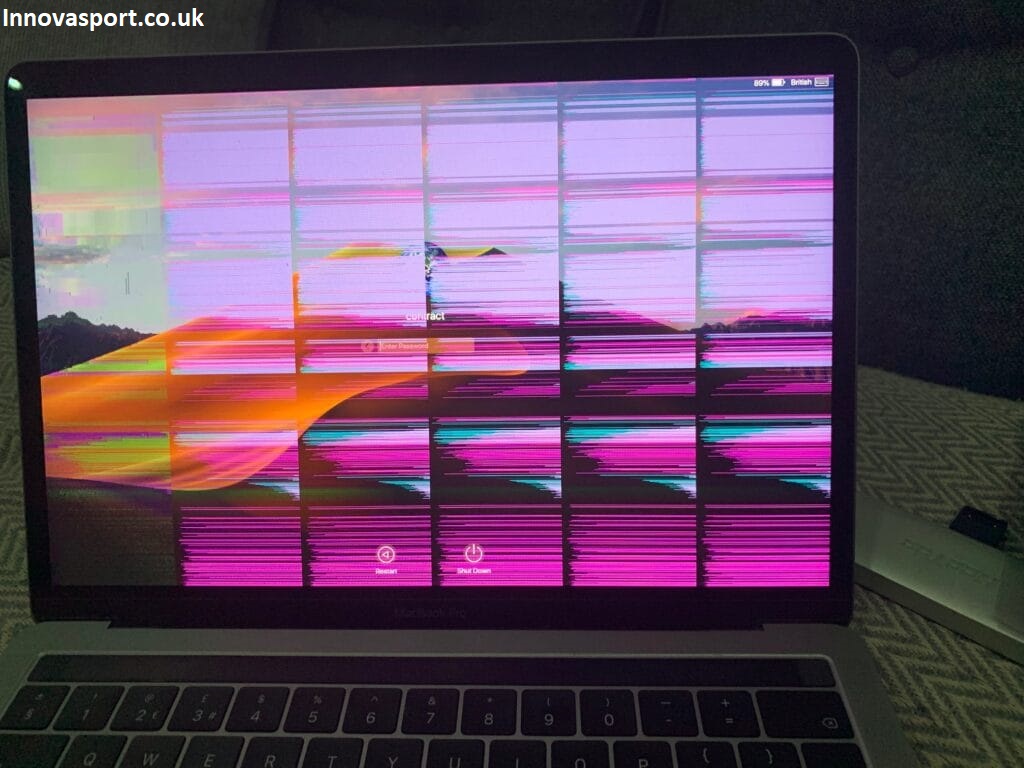
MacBook Pros from 2011–2013 with discrete GPUs had a well-documented GPU defect. Apple even had a repair program for it. The symptom? Flickering, graphical artifacts, then eventually no display at all.
If you’re on an older model and seeing colorful glitch patterns alongside the flickering, this might be what you’re dealing with.
Display panel degradation
On MacBooks that are 5+ years old, the display panel itself can start to degrade — especially if there’s been any moisture exposure or physical stress.
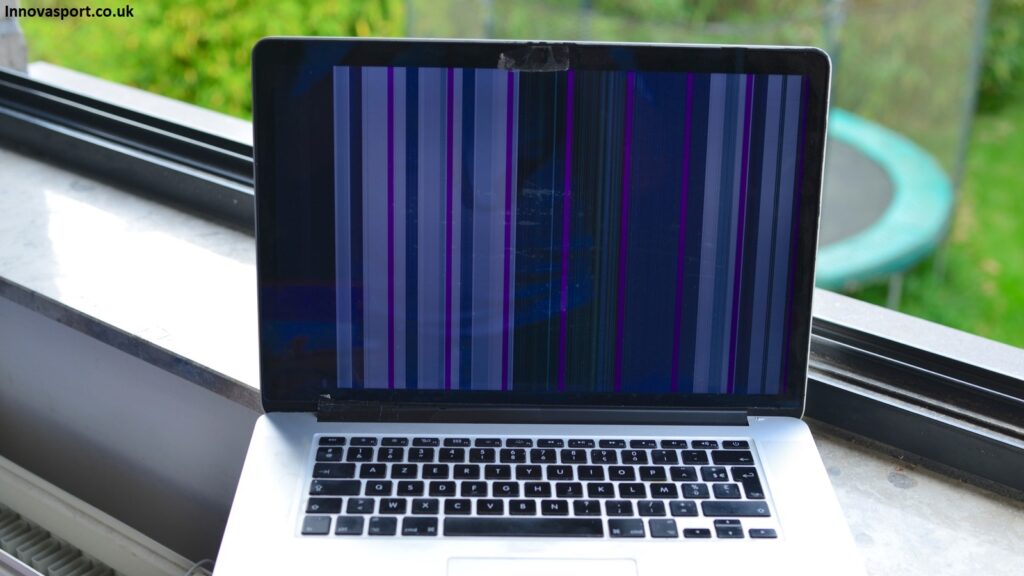
This tends to look like persistent vertical lines or uneven backlight bleed combined with flickering.
Overheating GPU or logic board
When the GPU or logic board gets too hot, the display can start flickering as a symptom of thermal throttling. Download a free app like i Stat Menus or HW Monitor and check your GPU and CPU temps under load.
If they’re consistently above 90°C, thermal paste or a fan cleaning might be overdue.
Step-by-step: how to actually diagnose it
Diagnostic flow — follow in order
Boot into Safe Mode. Restart and hold Shift. Safe Mode disables third-party extensions and uses basic graphics drivers. If flickering stops in Safe Mode, a software/driver issue is causing it
Connect an external display. If the external display doesn’t flicker but your built-in screen does, it points to the internal display, cable, or panel — not the GPU.
Check Activity Monitor. Open it and look at the GPU History (Window menu). If GPU usage spikes to 100% right when flickering happens, something is hammering your GPU — find and close that process.
Run Apple Diagnostics. Shut down, then hold D while starting up. This runs built-in hardware tests and will flag GPU or display issues with error codes you can look up.
Create a new user account. If the flickering doesn’t happen on a fresh user profile, your main account has corrupted display preferences or a problematic login item.
Mistakes people make (including me)
Mistake 1
Jumping straight to a factory reset. I did this the first time. Spent three hours restoring from a backup only to have the flickering come back because it was a hardware issue. Rule: always exhaust software diagnostics first.
Mistake 2
Ignoring it because “it only flickers sometimes.” Intermittent hardware problems almost always get worse. If it’s a failing cable, catching it early means a cheaper repair.
Mistake 3
Buying a display replacement from a random third-party seller without checking if there’s a known Apple repair program. Several MacBook models have had free repair extensions — check support.apple.com before spending money.
Mistake 4
Not noting when the flickering happens. The pattern matters enormously for diagnosis. Start keeping a mental (or actual) log: what app was open, what was plugged in, what was the battery level, was it hot?
When to go to Apple
If you’ve done the software fixes, run Apple Diagnostics, and the flickering persists — especially if it’s getting more frequent — book a Genius Bar appointment or go through an Apple Authorized Service Provider.
Bring notes: what you’ve already tried, when it started, what triggers it. This genuinely speeds up the diagnostic process and stops them from running through the same basic steps you already covered.
If your machine is under AppleCare+, display repairs are typically covered. Even without it, get a written quote before authorizing anything.
A display cable replacement is usually under $100 at third-party shops; a full display assembly through Apple runs significantly more.
If your Mac is a 2016–2019 MacBook Pro and you’re seeing flickering alongside a “stage light” effect at the bottom of the screen, look up the “Flexgate” repair program.
Apple has quietly covered many of these for free even out of warranty.
Quick reference — causes at a glance
GPU switching bugTrue Tone glitchCorrupt NVRAMSMC state issueBuggy macOS updateChrome hardware accelOverheating GPUFailing display cableDisplay panel damageDiscrete GPU failureThird-party app conflict
Screen flickering is stressful, especially when it happens in the middle of something important.
But it’s genuinely one of the more diagnosable Mac problems — the flickering pattern itself tells you a lot, and most of the time there’s either a quick software fix or a clear hardware culprit.
Start with Safe Mode. Watch when and how it flickers. Try the NVRAM and SMC resets. Disable GPU switching.
If you work through this list systematically, you’ll either fix it yourself or walk into a repair shop knowing exactly what you’re dealing with — which honestly saves you money either way.
FAQ’s
Is a flickering MacBook screen a serious problem?
It depends on the cause. Software related flickering is usually fixable at home with a few simple steps. However, hardware issues like a damaged GPU or loose display cable are more serious and require professional attention before they worsen.
How do I know if my MacBook flickering is hardware or software?
If the flickering stops after a restart or in Safe Mode, it is likely a software issue. If it persists regardless of what you do, appears with physical movement of the screen, or includes color distortion, it is most likely a hardware problem.
Can a macOS update fix screen flickering?
Yes, absolutely. Apple regularly releases patches that address display bugs and graphics issues. Keeping your macOS updated is one of the simplest and most effective ways to resolve software related flickering.
Will resetting NVRAM fix my flickering screen?
It often helps. Resetting NVRAM clears stored display and graphics settings that may have become corrupted, and it is a safe, quick troubleshooting step worth trying before seeking professional repair.
How much does it cost to fix a flickering MacBook screen professionally?
Costs vary widely depending on the cause. Software fixes are free, while hardware repairs like display cable replacement or GPU repair can range from $200 to $600 or more depending on the MacBook model.
Conclusion
A flickering MacBook screen is never something to simply ignore and hope resolves itself.
While the occasional brief flicker may seem harmless, persistent screen instability is almost always a sign that something needs attention, whether that is a simple software reset or a more involved hardware repair.
Catching the problem early almost always saves time, money, and unnecessary frustration down the road.
The good news is that many cases of MacBook screen flickering are entirely fixable at home without any technical expertise.
A quick restart, an NVRAM reset, a macOS update, or identifying and removing a conflicting third party app can resolve the issue completely in a matter of minutes.
These steps cost nothing and are always worth trying first before spending money on professional repairs.
However, if the flickering persists after exhausting all software solutions, do not delay seeking professional help.
A loose display cable or failing GPU will only deteriorate further with time, and what starts as occasional flickering can eventually become a completely unusable screen.
Take care of your MacBook and it will take care of you. Address the flicker early, stay updated, and never hesitate to visit an Apple Authorized Service Provider when the situation calls for it.
About the Author